Features
Everything it does, in seven parts.
Rimline turns the edges and corners of the trackpad into controls. Pick a part to see it work, or search the whole list below.
Sliders and feel
Volume, brightness, microphone level and keyboard light on any edge you choose.
- Right edge for volume and left for brightness out of the box, swap or retarget either one
- Brightness changes the display under the pointer
- A skip-tracks strip along the bottom edge
Taps, holds and more fingers
Four corners and the middle of every edge, each with a tap, a double tap and a hold, for one or two fingers.
- Eight places: four corners and the middle of every edge
- A tap, a double tap and a hold in each: 24 slots with one finger, 24 more with two fingers resting together
- A tap waits a moment when a double tap sits in the same place
Window control
Snap to halves, quarters and thirds, or hold and aim with a preview before you commit.
- Halves, quarters, thirds, two thirds, maximize, almost full, center and restore
- Next and previous display
- Repeat a snap to cycle a half, two thirds, one third
Scenes and presets
Hold a key, change app or plug in headphones, and the whole pad rearranges.
- Start a scene by holding Fn, Option, Control or Command, or with a shortcut
- Start one by itself for an app, headphones, an external display, a time of day or the power source
- A scene stores only what it changes, so editing your layout updates every scene
Workflows and actions
Nine kinds of action, workflows that chain steps under one name, and rimline:// links.
- Nine kinds of action, and one search that ranks by name, by kind and by what the action does
- Open an app, a link or a file, press any keys, run a command or type text
- Workflows chain steps and waits under one name, run top to bottom with a short gap
Looks and displays
Four finishes, three on-screen display styles, and a pad that lives in the menu bar.
- Four finishes: Space Black, Silver, Starlight and Glass
- On-screen display styles: Classic, Pill and Edge
- Small, regular or large, and a place on the screen
Calm and private
It ignores the trackpad while you type, pauses in games, and keeps your touches on your Mac.
- A typing guard: touches are ignored while you type, for a time you set
- Palm care: a touch that starts while the guard is on stays ignored until every finger lifts
- Auto-pause in games (on by default) and, if you want, in full-screen apps
One window, tab by tab.
This is the real app, every tab, top to bottom. Click a tab, then scroll the window.
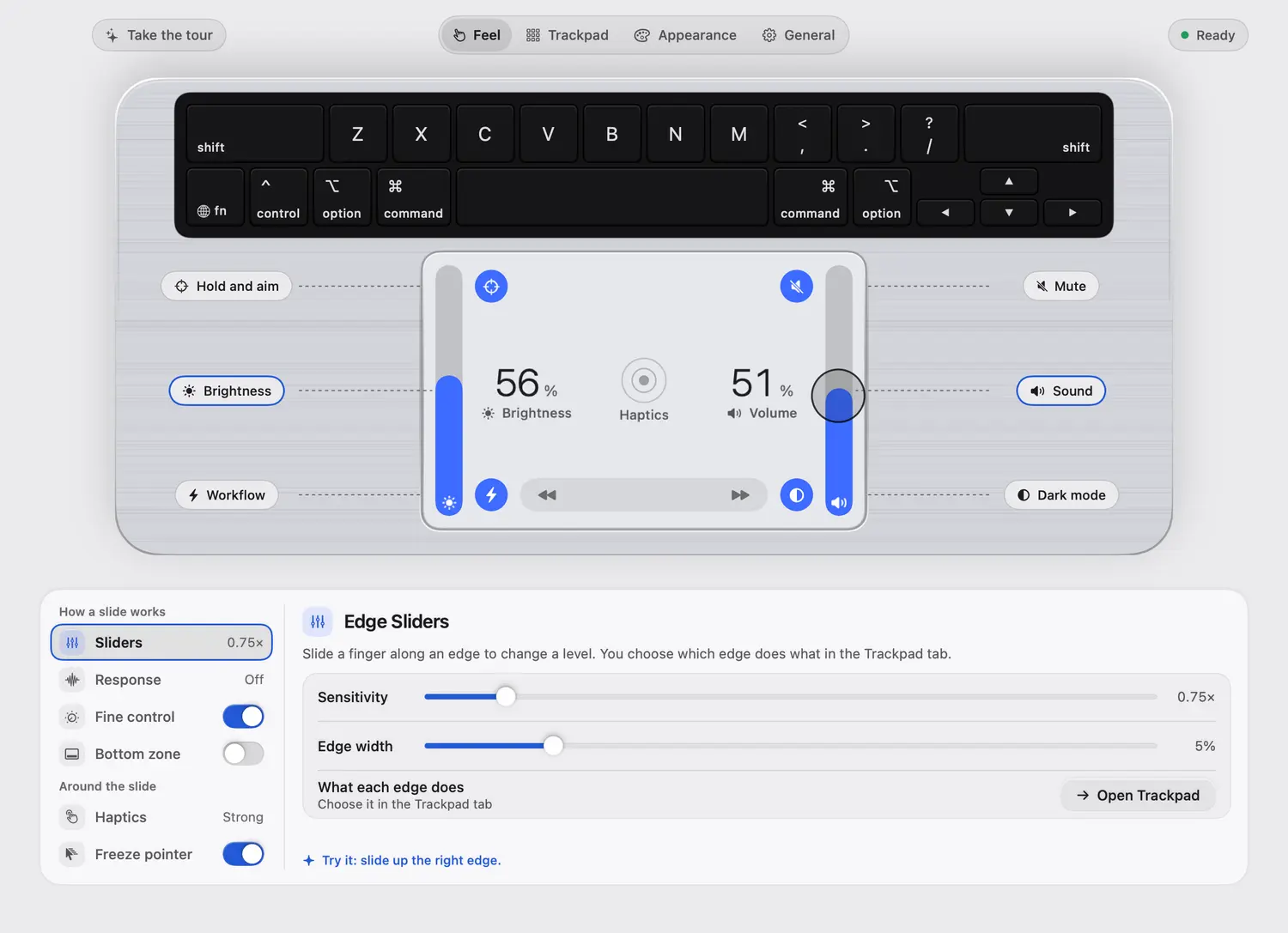
The pad and the keyboard drawn live, then the settings for how a slide behaves: sensitivity, response, fine control, the bottom zone, haptics and freeze pointer.
Everything, in one list.
106 things, from the nine kinds of action to the 19 places a window can go.
106 things
Sound
Volume, with a limit for headphones
Sliders and feelBrightness
The display under the pointer
Sliders and feelMicrophone level
Sliders and feelKeyboard light
Sliders and feelSkip tracks
A swipe along the bottom edge
Sliders and feelSlide to step
Every notch presses a shortcut: browser tabs, desktops, scrub video, undo and redo
Sliders and feelMute
Workflows and actionsMute the microphone
Workflows and actionsPlay and pause
Workflows and actionsNext track
Workflows and actionsPrevious track
Workflows and actionsNext sound output
Speakers, headphones, a display, AirPlay
Workflows and actionsSnap to a place
The 19 window targets
Window controlHold and aim
Slide toward a place, lift to put the window there
Window controlPrevious space
Window controlNext space
Window controlMission Control
Window controlApp Exposé
Window controlShow desktop
Window controlStage Manager on and off
Window controlJump to a desktop
Window controlMove the window to the previous or next space
The window travels with you
Window controlMinimize
Window controlRestore a minimized window
Window controlFull screen
Window controlClose the window
Window controlClose the tab
Window controlQuit the app
Window controlHide the app
Window controlHide the others
Window controlPrevious app
Window controlDark mode
Looks and displaysNight Shift
Looks and displaysSleep the display
Looks and displaysStart the screen saver
Looks and displaysLock the screen
Workflows and actionsScreenshot of an area
Workflows and actionsScreenshot of the screen
Workflows and actionsSpotlight
Workflows and actionsGesture cheat sheet
Workflows and actionsDemo mode
Workflows and actionsOpen an app
Workflows and actionsOpen a link
Workflows and actionsOpen a file
Workflows and actionsPress keys
Any key combination
Workflows and actionsRun a command
Runs with a timeout
Workflows and actionsType text
Workflows and actionsTurn a scene on or off
Workflows and actionsRun a workflow
Steps and waits under one name
Workflows and actionsEveryday
Brightness left, volume right, skip tracks along the bottom, double tap the top right corner to mute.
Scenes and presetsWindow manager
Double tap the top corners for the left and right halves, the bottom left for full size, or hold to aim.
Scenes and presetsMedia and calls
Double tap the top left to mute the microphone and the top right to mute the sound.
Scenes and presetsSliders only
Only brightness and volume. No taps, nothing to trigger by accident.
Scenes and presetsPresenter
Arrow keys through your slides.
Scenes and presetsVideo calls
Microphone mute, and the microphone level along the bottom.
Scenes and presetsMusic
Play, skip and volume where your thumb already is.
Scenes and presetsDesktops
Slide between desktops and jump to one.
Scenes and presetsQuick tools
Spotlight, a screenshot, lock on a hold, and the cheat sheet.
Scenes and presetsNight mode
Dark mode, Night Shift, sleep display and the screen saver.
Scenes and presetsA held key
Hold Fn, Option, Control or Command while you use the trackpad. Nothing to forget.
Scenes and presetsA shortcut
A global shortcut you record, or a Scene action on any gesture.
Scenes and presetsAn app in front
The scene turns on while that app is in front.
Scenes and presetsHeadphones
On while headphones are the sound output.
Scenes and presetsAn external display
On while one is connected.
Scenes and presetsA time of day
On between two times.
Scenes and presetsPower source
On while the Mac runs on its battery, or only while it is plugged in.
Scenes and presetsLeft half
Snap it again for two thirds, then one third
Window controlRight half
Snap it again for two thirds, then one third
Window controlTop half
Snap it again for two thirds, then one third
Window controlBottom half
Snap it again for two thirds, then one third
Window controlTop left quarter
Window controlTop right quarter
Window controlBottom left quarter
Window controlBottom right quarter
Window controlLeft third
Window controlCenter third
Window controlRight third
Window controlLeft two thirds
Window controlRight two thirds
Window controlMaximize
Window controlAlmost full
Leaves a margin of its own
Window controlCenter
Keeps the window size and puts it in the middle
Window controlRestore
Puts the window back where it was
Window controlNext display
Keeps its place and size relative to the screen
Window controlPrevious display
Keeps its place and size relative to the screen
Window controlVolume
Slide an edge. A limit keeps headphones from starting loud, and the level is remembered per output.
Sliders and feelBrightness
Changes the display under the pointer, fixed for the length of one slide.
Sliders and feelMicrophone level
A slide target, handy along the bottom for calls.
Sliders and feelKeyboard light
A slide target using the keyboard backlight.
Sliders and feelSkip tracks
A swipe along the bottom edge.
Sliders and feelSlide to step
Every notch presses a shortcut, forward or reversed, in three step sizes.
Workflows and actionsSnap points
The level catches on round values. Optional.
Sliders and feelFiner steps at the quiet end
Small changes at low levels. Optional.
Sliders and feelFine control
Hold Shift and Option for a step size you choose.
Sliders and feelFreeze pointer
The pointer stays put while you slide.
Sliders and feelHaptics
A tick as you slide and a bump at the ends, in four independent strengths.
Sliders and feelBottom zone
Limit slides to the bottom of the pad.
Sliders and feelTap, double tap, hold
Eight places: four corners and the middle of every edge. 24 slots with one finger, 24 more with two.
Taps, holds and more fingersTwo fingers
A second set of tap, double tap and hold when two fingers rest together and stay still.
Taps, holds and more fingersThree and four fingers
Taps, holds and swipes, each count with its own switch, anywhere or only on a title bar or the menu bar.
Taps, holds and more fingersHold and aim
Hold a zone, slide toward a place, lift to put the window there.
Window controlPointer gestures
Two fingers on a title bar or the menu bar: swipe, pinch or spread.
Window controlRecord a gesture
Do the gesture on your trackpad and Rimline selects that place and opens the action picker.
Taps, holds and more fingersTest and tune
Your touches, the zone lit and the decision in words, with sliders for hold time, tap length, double tap gap and zone sizes.
Taps, holds and more fingersConflict warnings
Says when a tap sits beside a double tap, or when macOS does the same gesture at the same time.
Taps, holds and more fingersIdeas for you
Up to three suggestions for empty places, with the reason and the exact gesture.
Taps, holds and more fingers
Nothing matches. Try another word, or clear the filter.
What you need.
- macOS
- 13 Ventura or later
- Macs
- Apple silicon and Intel (developed and tested on Apple silicon)
- Trackpad
- The built-in trackpad of a MacBook
- Permission
- Accessibility, to read touches and move windows
- Price
- 3 day free trial, then $9 once