SoundOn
MusicArmed

Looks and displays

Make it look like yours.

Pick a finish and the whole window wears it. Choose how a level shows on screen, keep a live pad in the menu bar, and turn on Demo mode for recordings and talks.

Join the waitlistSet it up in the app3 day free trial, then $9 once. macOS 13 or later.

Four finishes, one accent.

Pick a look and every control follows it, the display included.

  1. 1Finish
  2. 2Displays
  3. 3Popover
  4. 4Demo mode

01of 04

Finish.

Pick the Mac your trackpad wears. The window and every drawing in it change right away.
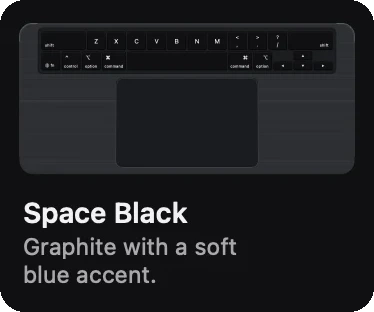
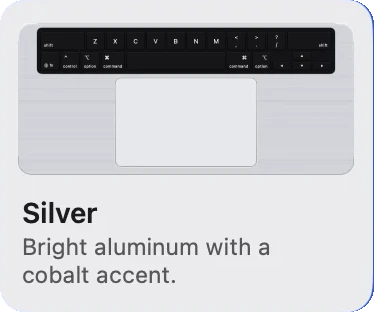
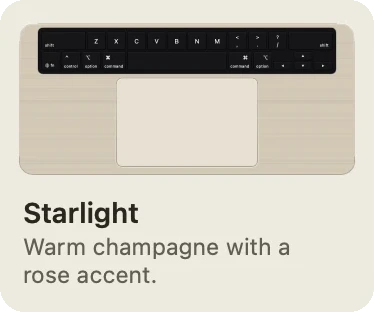
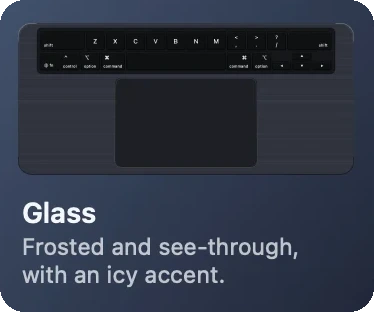
  • Space Black, Silver, Starlight and Glass
  • Each has its own accent, from soft blue to icy cyan
  • Glass blurs what is behind the window, with a Frost control from clear to frosted
The Space Black finish: a graphite keyboard and trackpad with a soft blue accent.
The Silver finish: bright aluminum with a cobalt accent.
The Starlight finish: warm champagne with a rose accent.
The Glass finish: frosted and see-through, with an icy accent.
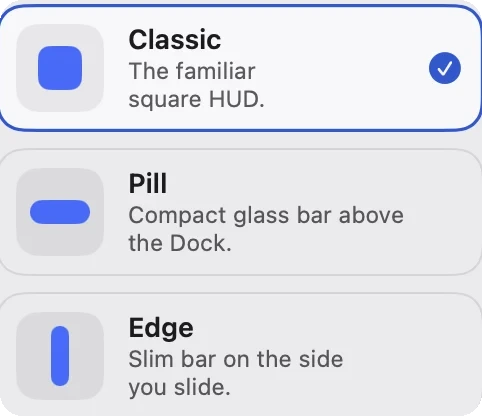
The real On-screen display style picker: Classic, Pill and Edge.

Four finishes, one accent.

Pick a look and every control follows it, the HUD included.

02of 04

Displays.

The display that shows a level while you slide comes in three styles. Same slide, three ways to see it.

  • Classic is the familiar square, Pill a compact bar above the Dock, Edge a slim bar on the side you slide
  • Small, regular or large, and at the bottom, centre or top of the screen
  • Look options: material, fill, bar, number and motion
  • Window, aim, space and app feedback can show as a small chip by the pointer instead
Classic
Left half

ClassicThe familiar square HUD.

Pill
Desktop 2

PillCompact glass bar above the Dock.

Edge
Music

EdgeSlim bar on the side you slide.

One slide, three displays.

Classic, Pill and Edge answer the same slide, in the size and place you choose.

03of 04

Popover.

The menu bar popover is the trackpad itself, drawn small from the layout in force right now. Sliders you can drag, corners that run when you click.
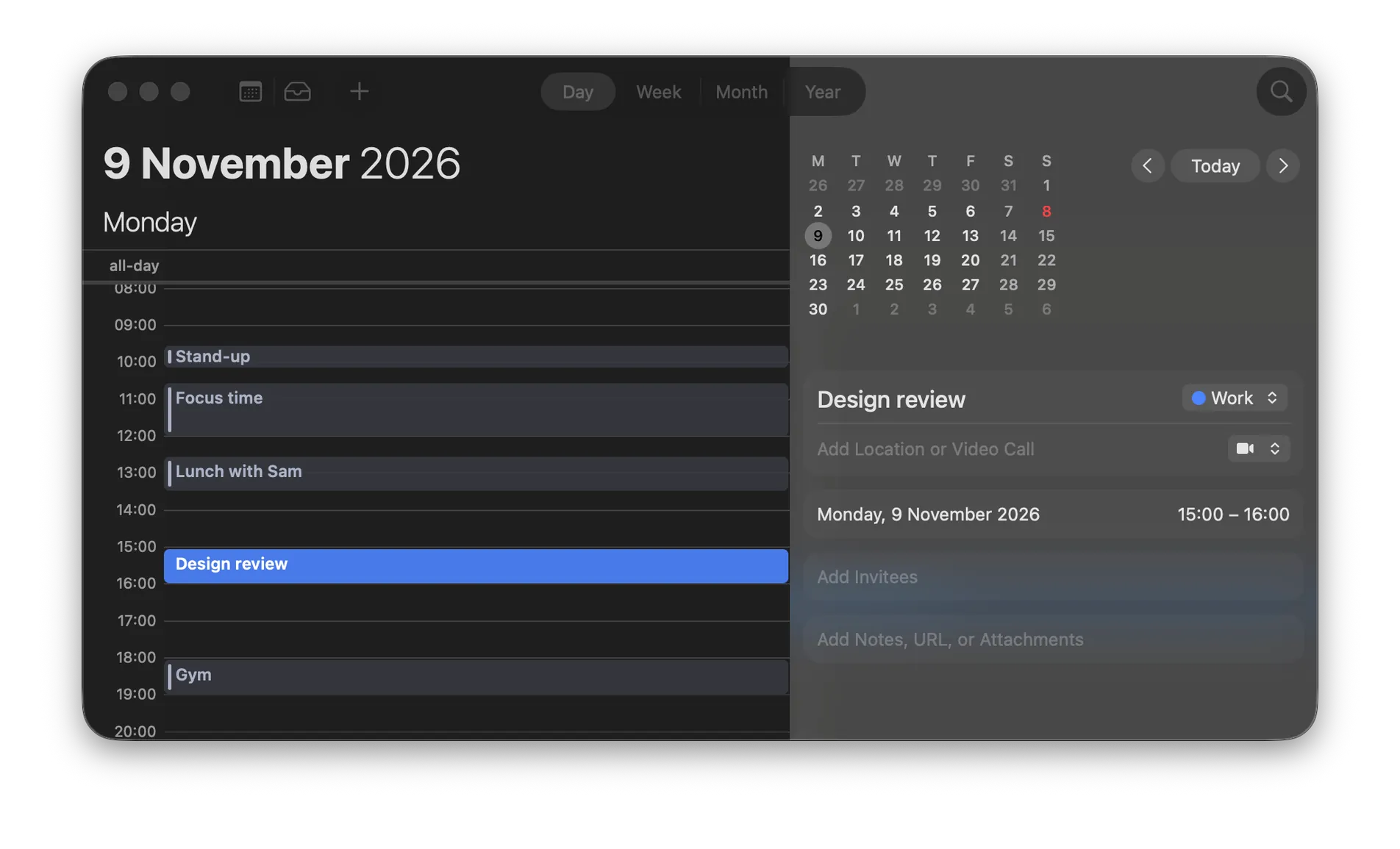
  • The app you came from and the layer that applies, with Turn off here
  • Scene chips, six switches in a row and your recent actions to run again
  • Where Rimline lives: the menu bar, the menu bar and the Dock, or the Dock only
FinderFileEditViewMon 9 Nov 8:45

The trackpad, in the menu bar.

The popover draws your layout small. Slide its edges, click its corners, switch scenes.

04of 04

Demo mode.

Show your fingers and a caption for every gesture, for recordings, tutorials and talks.
  • A small trackpad in the corner you choose, with a short trail behind each finger
  • Turn it on from General, from a gesture, or with rimline://action/demoMode
  • Never saved: Rimline always starts without it

Demo mode.

Draws your fingers and names every gesture on screen, for videos and talks.

Set it up in the app.

Rimline opens on the page where looks and displays lives. Nothing to hunt for.

These buttons talk to the app, so they work once Rimline is installed. Join the waitlist to hear when it opens.
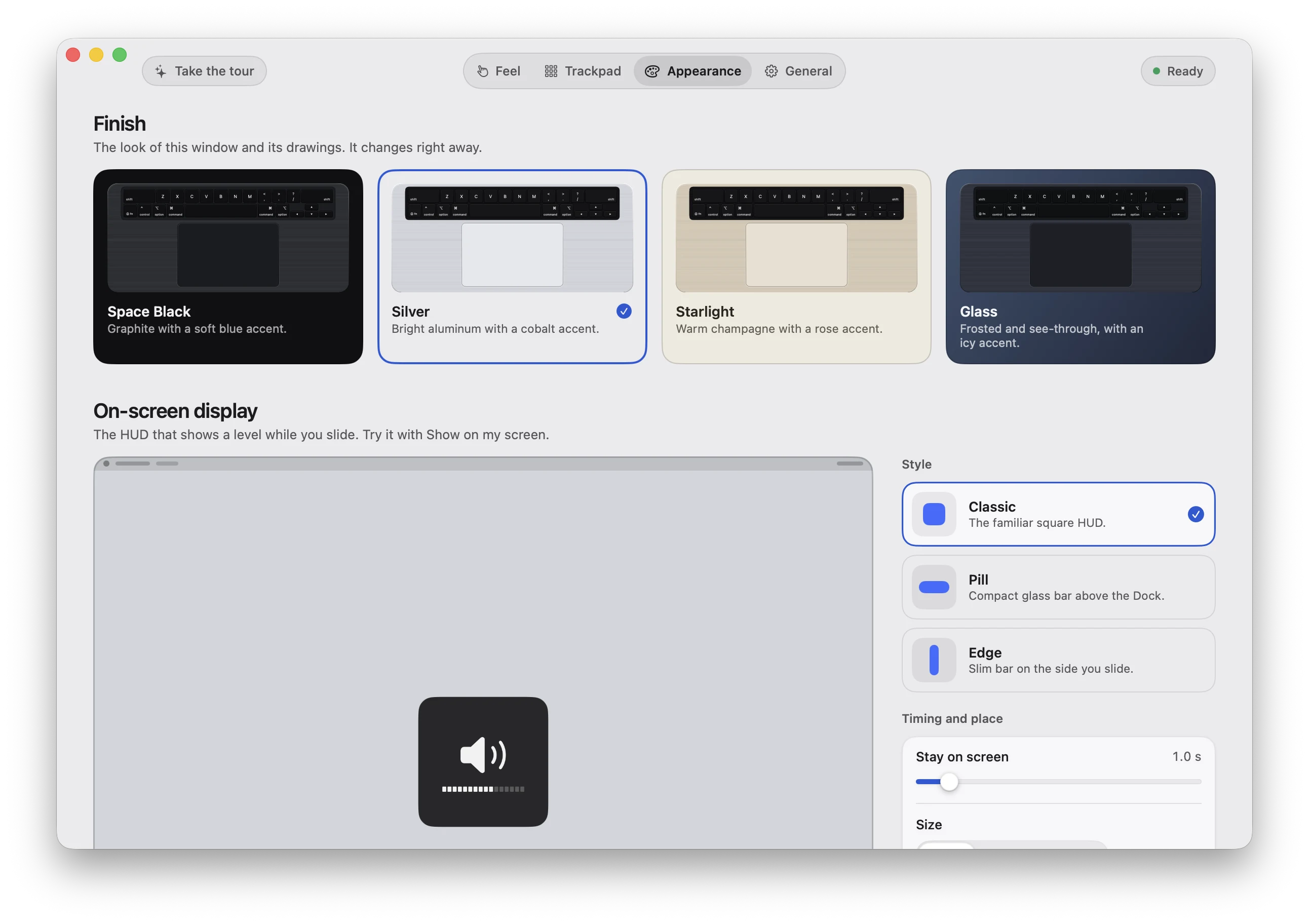
The Rimline window on the Appearance tab with the Silver finish chosen: the four finishes above the on-screen display styles

Your trackpad has edges. Use them.

3 day free trial, no card, then $9 once. For macOS 13 or later. Drag it to Applications and slide your first edge in a minute.

Version 1.0.0. Apple silicon and Intel. Developed and tested on Apple silicon.