Slow EdgeRimline


The pad follows the app.
Bring another app to the front and the whole pad lays out again for it.
Scenes and presets
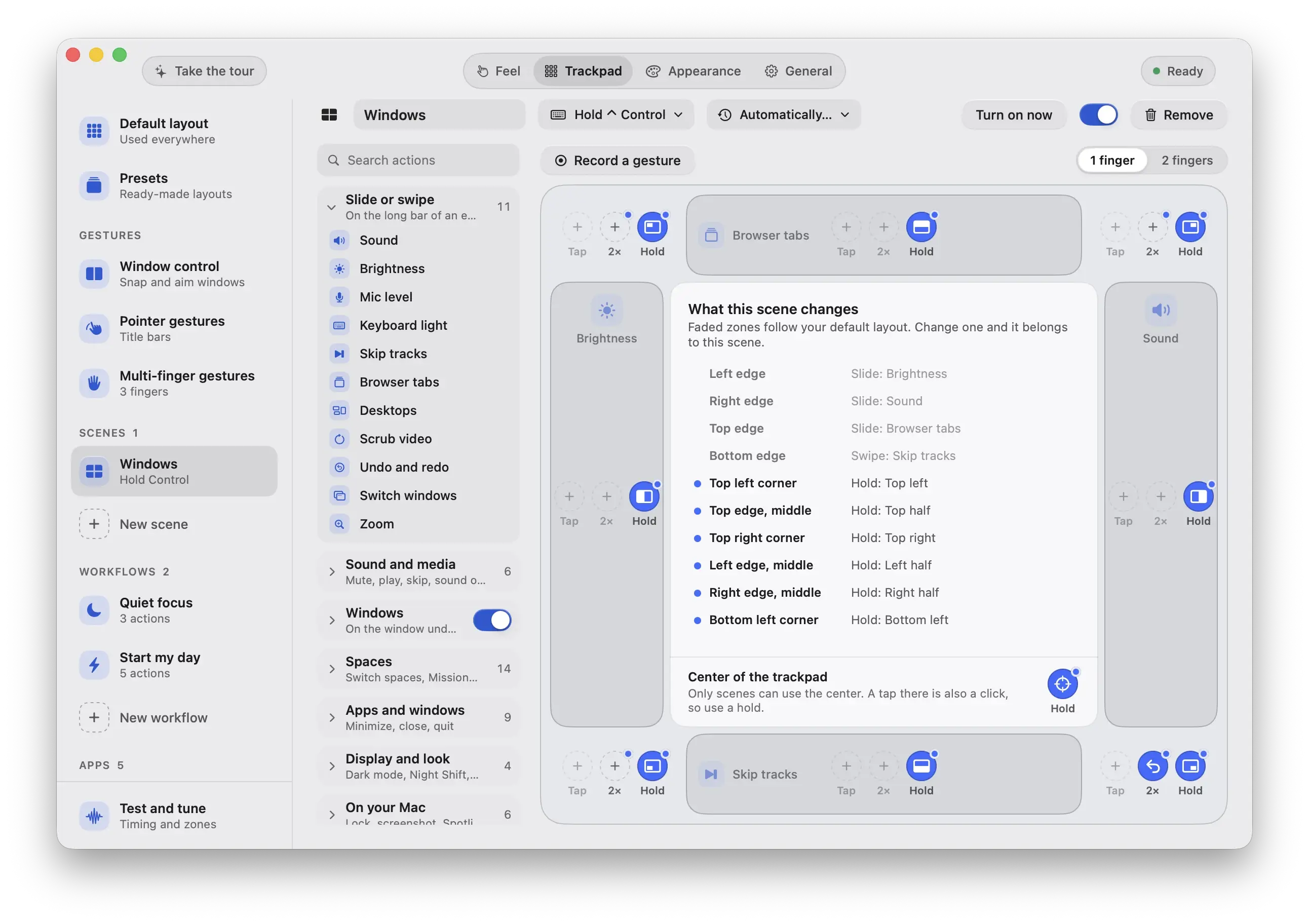
A scene is a layout that turns on by a held key, a shortcut, or by itself for an app, headphones, an external display, a time of day or the power source.
Bring another app to the front and the whole pad lays out again for it.
01of 04
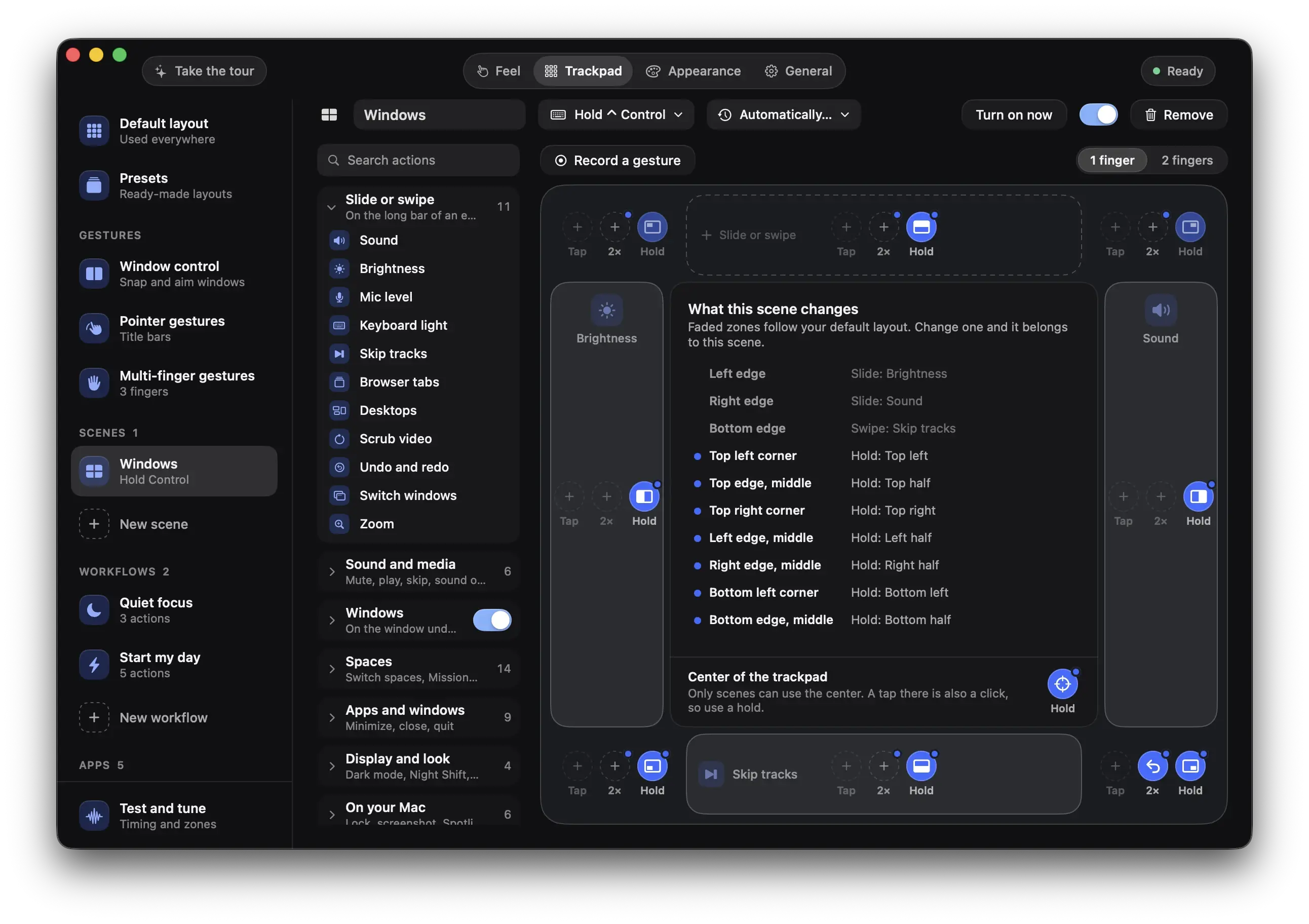
Hold a key and the pad lays out again: the edges become window buttons. Let go and your layout comes back.

Hold Control and the edges become window buttons. Or let the app, headphones, display, time or power pick one.
02of 04
A scene can turn on by itself and give your layout back the moment the rule stops. Nothing to remember, nothing to press.
The Mac is on its batteryScene on
An app, headphones, an external display, a time or the battery turns a scene on, and your layout comes back when the rule stops.
03of 04
Give an app its own layout. It stores only the zones it changes, so the rest still follows your default.
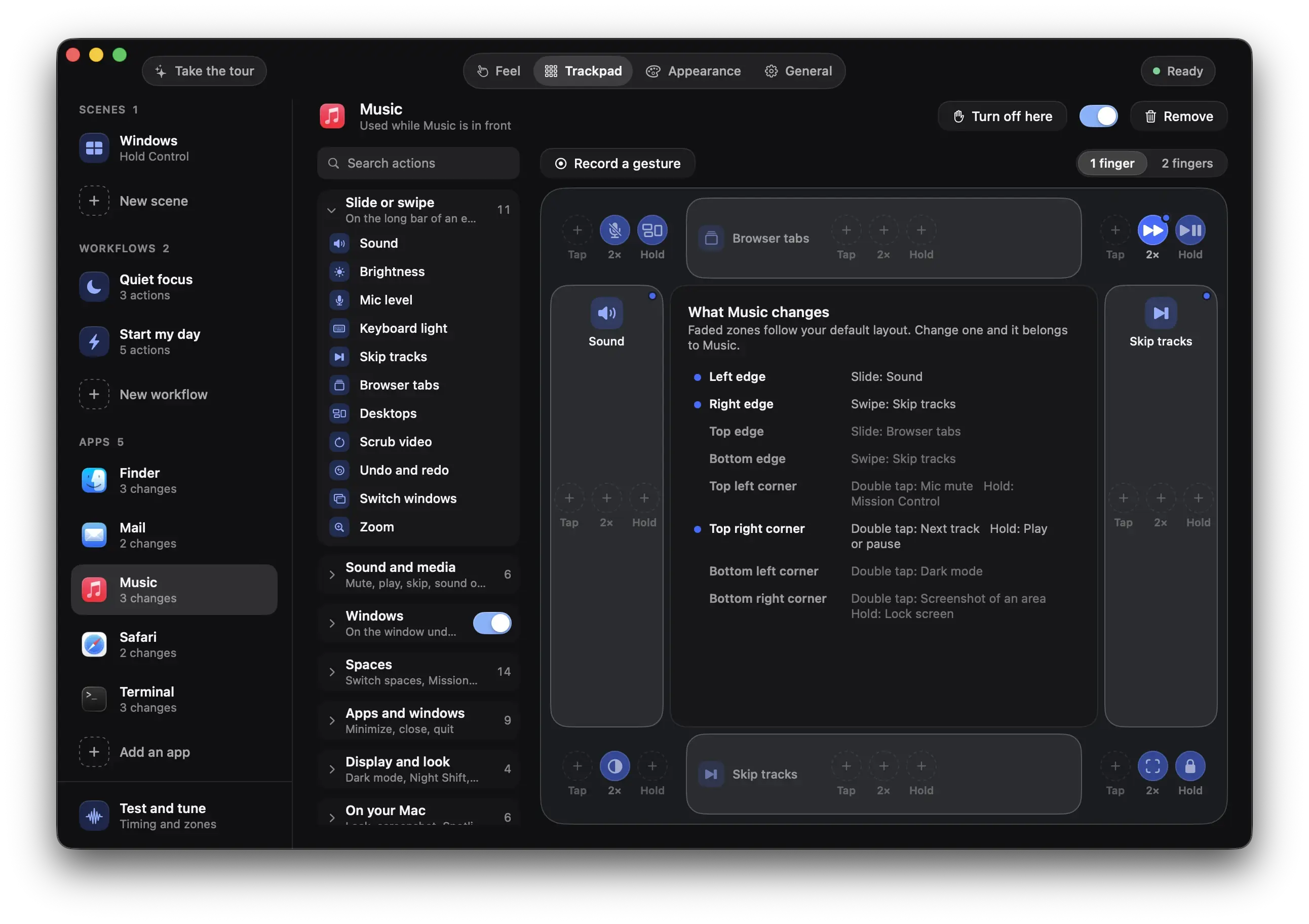
Click an app in the Dock and the pad changes with it.
04of 04
Ten ready layouts, each drawn on its own pad. Pick one, keep your own, or let one turn on by itself as a scene.
Dark mode, Night Shift, and on a hold the sleeping display and the screen saver.A scene that keeps only what differs from your layout. You choose when it turns on.
Each preset is a whole pad. Apply one, keep your own, or make one a scene that turns on by itself.
Rimline opens on the page where scenes and presets lives. Nothing to hunt for.
These buttons talk to the app, so they work once Rimline is installed. Join the waitlist to hear when it opens.
3 day free trial, no card, then $9 once. For macOS 13 or later. Drag it to Applications and slide your first edge in a minute.
Version 1.0.0. Apple silicon and Intel. Developed and tested on Apple silicon.