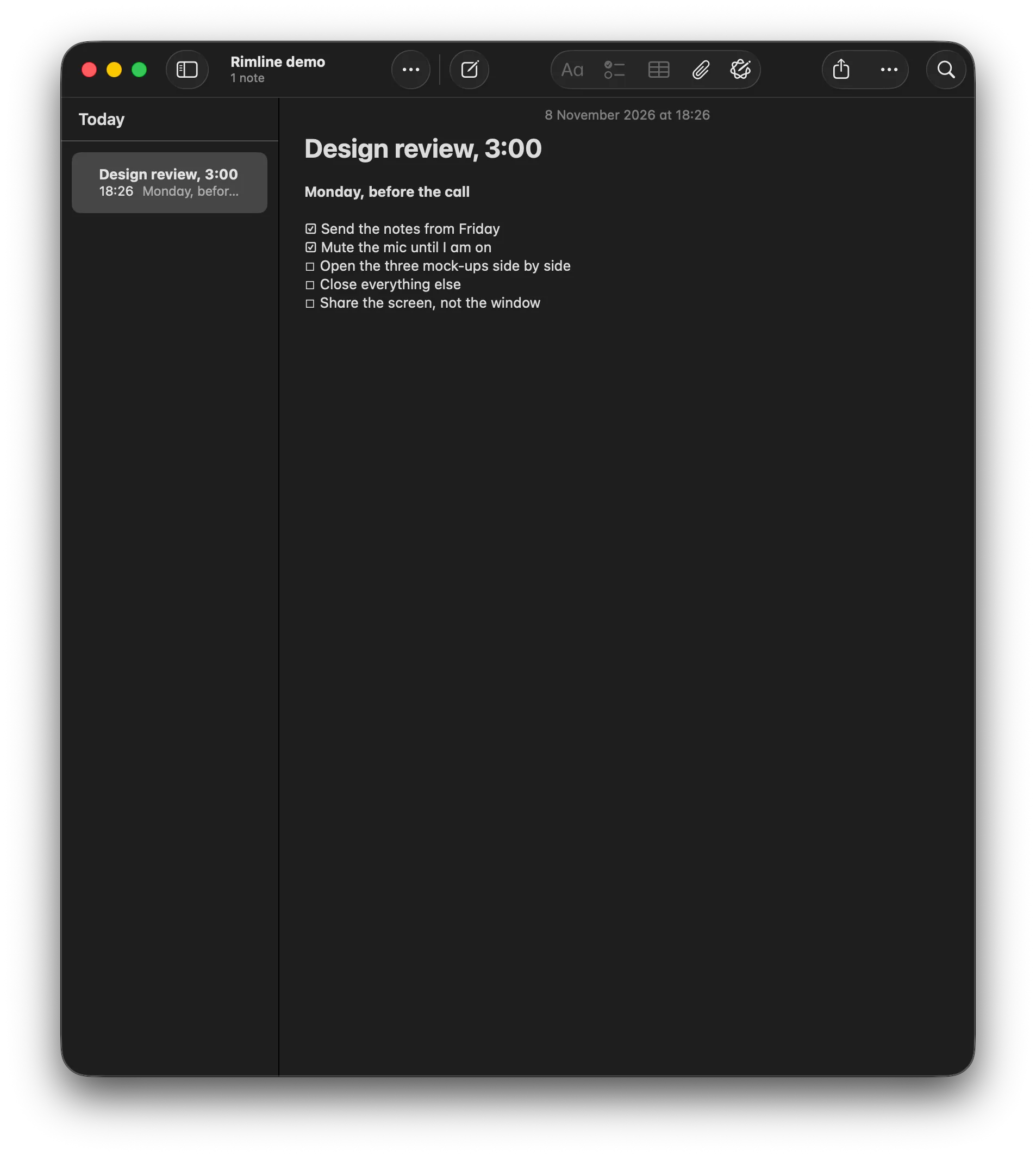
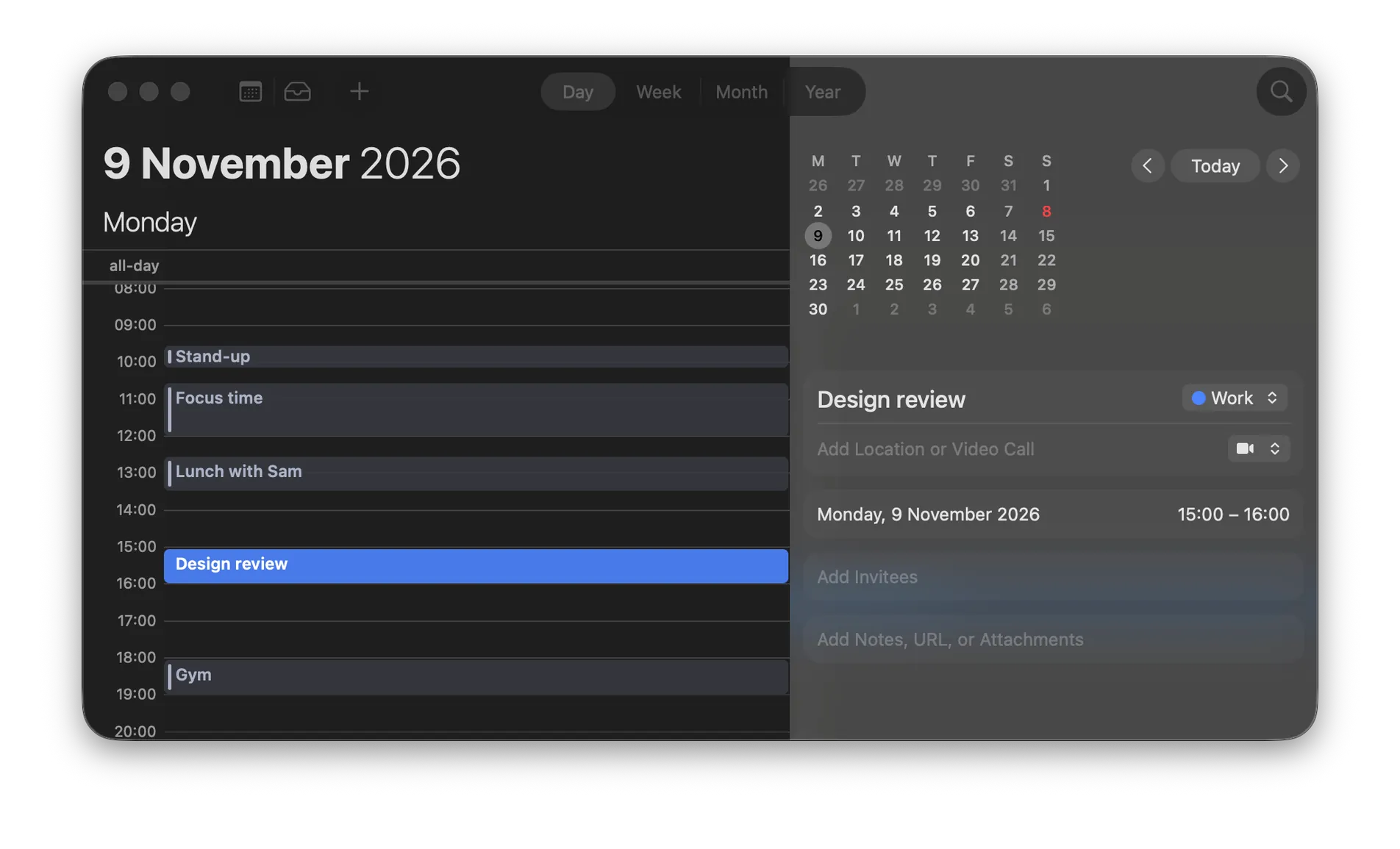
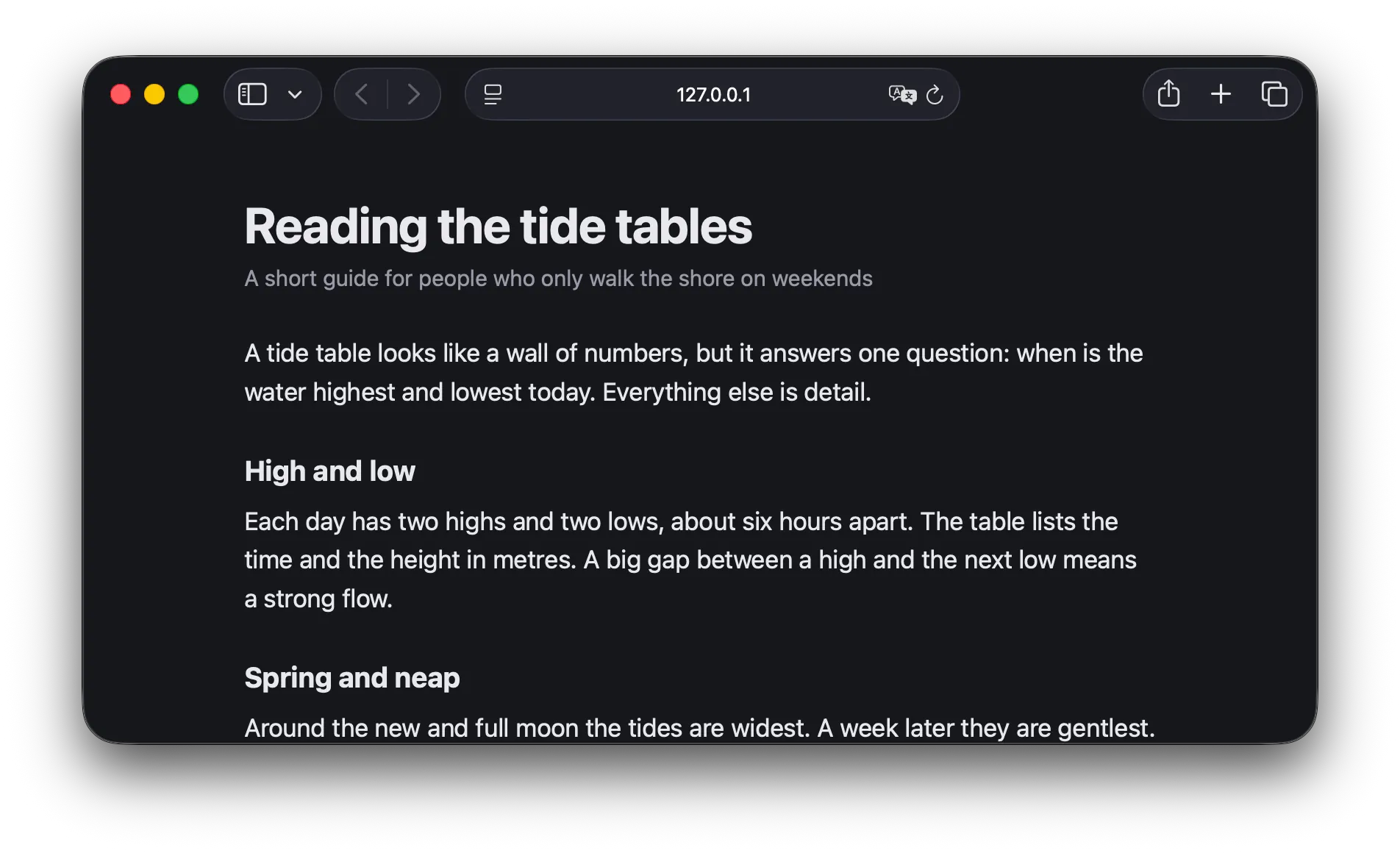
Left half
Top right quarter
Bottom right quarter




Hold, aim, lift.
Hold a zone, slide toward the place, and an outline shows where the window will land.
Window control
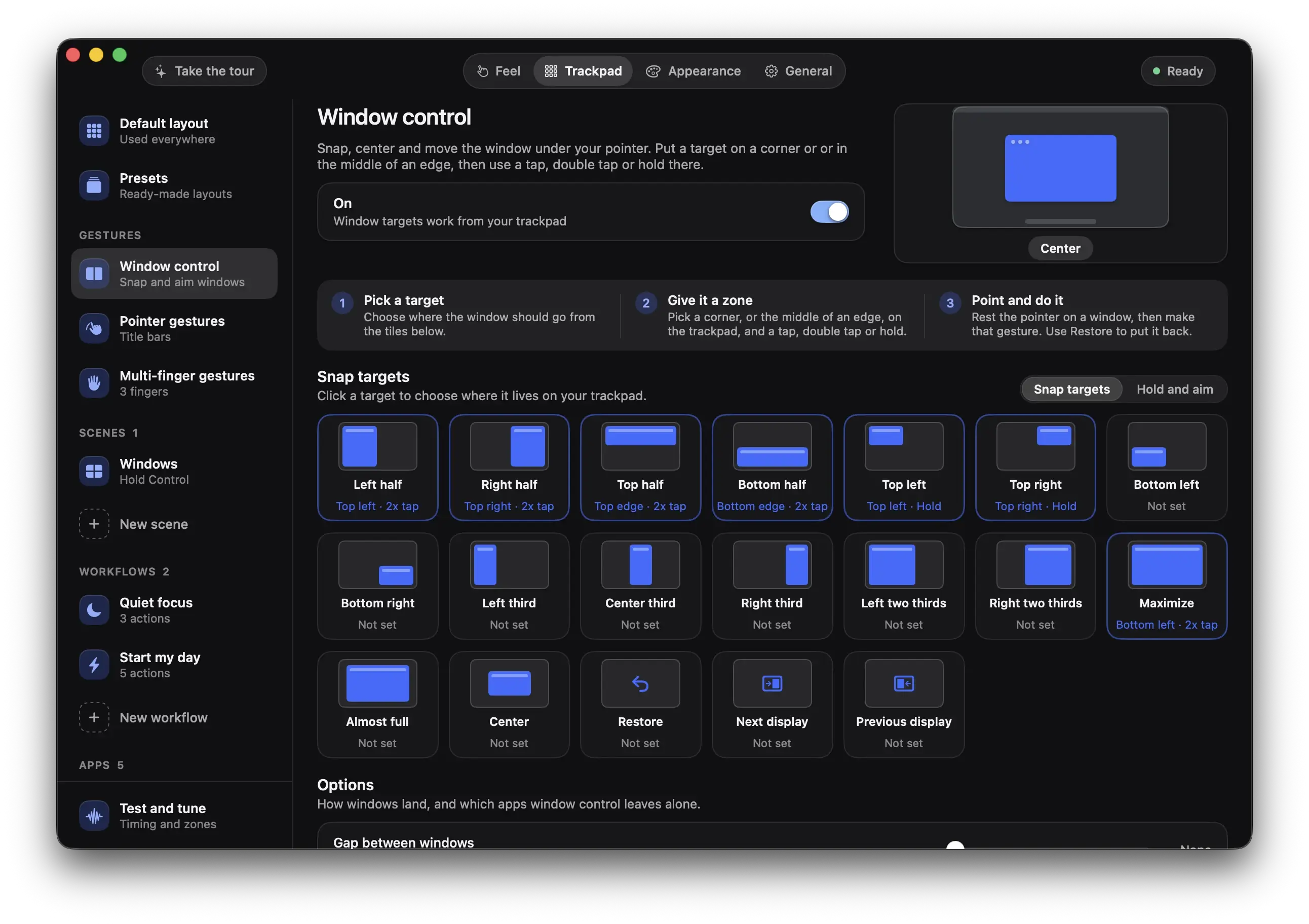
Snap the window under your pointer with a tap, or hold a zone and slide toward the place you want. An outline shows the landing, and you lift to commit.
Hold a zone, slide toward the place, and an outline shows where the window will land.
01of 04
Pick a place for the window under your pointer: a half, a quarter, a third or the whole screen. Do the gesture and it glides there.
A tap or a hold on a corner puts it in a half, a quarter, a third or the whole screen.
02of 04
Hold a zone for half a second. The pointer freezes on the window. Slide toward the place and a cobalt outline previews the landing. Lift to commit.
Hold a zone, slide toward the place, and an outline shows where the window will land.
03of 04
Slide to the far corners. Up carries the window to the next or previous space. Down closes it or minimizes it.
123Far up carries it to the next or previous space. Far down closes it or minimizes it.
04of 04
Put the pointer on a title bar, rest two fingers on the trackpad and swipe or pinch. What happens is up to you, for each place.
Put the pointer on a title bar, rest two fingers on the trackpad and swipe or pinch.
Rimline opens on the page where window control lives. Nothing to hunt for.
These buttons talk to the app, so they work once Rimline is installed. Join the waitlist to hear when it opens.
3 day free trial, no card, then $9 once. For macOS 13 or later. Drag it to Applications and slide your first edge in a minute.
Version 1.0.0. Apple silicon and Intel. Developed and tested on Apple silicon.